 0
0
 0
0
Optical character recognition can feel like magic: a photo of a page becomes editable text. Learning how to use online OCR to convert PDFs and images to text turns that magic into a reliable tool you can use for work, research, or clearing clutter.
What OCR actually does and why it matters
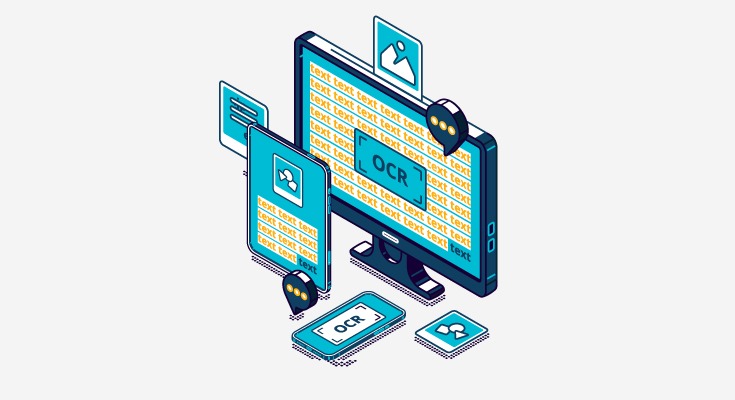
OCR is the process of recognizing printed or typed characters inside images and turning them into machine-readable text. It isn’t perfect, but modern engines can reach excellent accuracy when the source material is clear and set up correctly.
This matters because editable text lets you search, copy, translate, summarize, and repurpose documents. Instead of retyping a whole report or manually transcribing notes, you can extract the content and refine it in a word processor.
How online OCR services work behind the scenes
Most online OCR tools send your file to a server where an OCR engine analyzes the image, detects characters, and outputs text or a formatted document. Popular engines include Tesseract, ABBYY, Google Cloud Vision, and proprietary algorithms that each have strengths and limits.
Online services typically add web-friendly features: language selection, output formats (plain text, Word, searchable PDF), and basic layout preservation. They trade local control for convenience, so uploads and result quality depend on your network and the chosen provider’s settings.
When to choose online OCR and when to keep it local
Use online OCR when you need quick results without installing software, when the files are small, or when you want integration with web apps. It’s especially handy for occasional users and for people who work on multiple devices.
Keep OCR local for extremely sensitive documents, bulk processing of thousands of pages, or when you require the maximum control over layouts and zoning. Desktop tools like ABBYY FineReader and open-source Tesseract give more privacy and automation for heavy workloads.
Preparing your files: small changes that make a big difference
Good OCR starts before you upload. Aim for clean, high-contrast scans: remove shadows, straighten pages, and crop away borders. These small adjustments reduce misreads and speed up post-processing.
Scan documents at 300 dpi when possible; 200 dpi can work for large, high-contrast type, but anything below 150 dpi usually degrades accuracy. Save images in lossless or high-quality formats—PNG or TIFF are ideal, while JPEG can be acceptable if compression is low.
Supported file types and what to expect
Most online OCR services accept PDFs, JPG, PNG, and TIFF files. Multi-page PDFs are commonly supported, but some free tools limit the number of pages processed at once. Check the service’s limits before starting a long job.
Searchable PDFs are often produced as output, embedding text over the original image—handy for humans and search engines. Alternatively, services can return editable Word documents, plain text, or structured formats like Excel for tabular data.
Choosing a trustworthy service
Look for providers with clear privacy policies, visible user reviews, and reasonable file size limits. A trustworthy service will state whether uploaded files are stored, how long they are retained, and whether they’re used to train models.
Paid options usually offer guarantees, better accuracy, and faster processing. But free services can be excellent for one-off tasks; I’ve used OCR.space and Google Drive for quick jobs, while turning to paid services for sensitive or high-volume work.
Step-by-step: converting a file with a typical online OCR tool
This is the basic flow you’ll follow on almost any platform: select a service, upload your file, choose language and format, run recognition, and download the result. Each step contains choices that affect accuracy and formatting, so take a moment to check settings.
Here’s an ordered set of actions to follow:
- Open the OCR website or service and sign in if needed.
- Upload the PDF or image—drag-and-drop is common and convenient.
- Select the document language(s) and any special recognition options (columns, tables, handwriting).
- Pick the output format: searchable PDF, DOCX, TXT, or XLSX for spreadsheets.
- Run the OCR process and wait for the result to finish.
- Download and inspect the output, checking layout and accuracy.
Practical tips for choosing the right language and settings
Selecting the correct language is crucial because OCR engines use language models to disambiguate characters. If your document contains multiple languages, enable all of them when the tool supports multi-language recognition.
Choose layout options carefully: single-column versus multi-column, preserve images, and detect tables. Mis-specified settings can mix columns or strip tabular structures, so preview results when a service allows it.
How to handle multi-column pages and complex layouts
Complex layouts—magazines, academic papers, and newspapers—challenge OCR systems. Use a tool that supports column detection or manual zone selection to define reading order and avoid text jumble.
When a service lacks zoning tools, break the page into single-column images by cropping and running OCR on each piece separately. It’s more labor, but gives much cleaner results than relying on automatic detection alone.
Extracting tables and structured data accurately
Tables are often the hardest part of OCR because cell boundaries, merged cells, and varied alignment confuse recognition. Look for services offering spreadsheet outputs (XLSX or CSV) or table-detection features.
If the table is simple, many online tools will convert it cleanly. For complex tables, consider manual correction after automatic extraction or use a specialized table extraction tool that supports cell zoning and structure reconstruction.
Preserving formatting: what works and what doesn’t
Online OCR can often preserve basic formatting—bold, italics, paragraphs—better than older tools. However, precise page layout, exact fonts, and intricate spacing rarely come through perfectly in automatic conversions.
Expect to reflow text in a word processor and reinsert images or adjust headings. Treat OCR output as a starting point for editing, not a finished document ready for publication.
Post-processing: turning raw OCR into clean, usable text
After downloading OCR results, run a spell-check and scan for common errors like I/l and 0/O substitutions. Automated find-and-replace scripts can correct recurring mistakes quickly across large documents.
For long documents, sample-check several pages rather than proofreading every line. That lets you catch systematic issues caused by the source material and fix them in bulk rather than one-by-one.
Improving OCR accuracy with simple image edits
Straightening skewed pages and increasing contrast before OCR usually pays off. Tools like image editors or batch processing scripts can clean many pages quickly, improving recognition without manual fixes.
Removing background noise—coffee stains, colored paper, and patterned backgrounds—also helps. Binarization (converting to black-and-white) can increase accuracy for text-heavy documents but can damage faint glyphs, so test both ways.
Handwriting and cursive: special considerations
Handwritten text remains the toughest OCR challenge. General-purpose online OCR services rarely provide high accuracy for cursive or messy notes. If handwriting recognition is essential, seek solutions like Google Cloud Vision, Microsoft Read API, or specialized vendors that advertise handwriting support.
Even with specialized tools, expect lower accuracy and prepare to do manual correction. For meeting notes, a hybrid approach—automatic transcription followed by human editing—works best in practice.
Working with low-quality scans and photographs
Photos taken with phones are convenient, but lighting, blur, and perspective distortion can hurt recognition. Use natural light, steady your device, and position the camera square to the page to reduce perspective errors.
If you must work from a low-quality photo, crop tightly around the text, increase contrast, and, if possible, apply a de-warp or perspective-correction tool before running OCR. These fixes often restore surprising amounts of legibility.
Batch processing and automation for large projects
If you have dozens or thousands of pages, manual uploads are impractical; look for batch processing and API access. Paid services and some free platforms include bulk upload, automated folder monitoring, and webhooks for processing pipelines.
I once digitized a small archive of four hundred meeting minutes by batching scans into ZIP files and using an API to push results into a document management system. The upfront setup was worth it because I saved dozens of hours in the long run.
API options and integrating OCR into workflows
APIs let you add OCR to scripts, web apps, or content pipelines. Common offerings include REST endpoints for submitting files and receiving results asynchronously through callbacks or polling. They’re great for developers who want repeatable, automated conversion.
Use APIs for tasks like indexing invoices, extracting fields from forms, or converting scanned contracts into searchable text. Make sure your chosen provider supports the file types and languages your project needs before committing to an integration.
Mobile OCR: scanning on the go
Mobile apps combine a camera, basic image cleanup, and OCR in a single workflow. Apps like Adobe Scan, Microsoft Lens, and Google Drive’s scan functionality are reliable for on-the-go digitizing and can upload results directly to cloud storage.
For routine capture—receipts, business cards, and quick notes—mobile OCR is the fastest route. When you need greater control or batch accuracy, transfer the files to a desktop-based OCR pipeline for more careful processing.
Privacy, security, and compliance considerations
Uploading documents to a third party means handing over potentially sensitive data. Review a service’s privacy policy to determine how long files are stored, whether they are retained for training models, and if data is encrypted in transit and at rest.
For legal or confidential documents, consider local OCR or enterprise solutions with clear compliance standards like HIPAA or GDPR assurances. When in doubt, anonymize or redact sensitive details before uploading, if possible.
Cost considerations and what you get for paid plans
Free tiers usually cover occasional use and small files, but price plans matter for heavy users: paid tiers increase file size limits, pages per month, processing speed, and priority support. They might also offer better privacy guarantees and SLA commitments.
Evaluate cost per page versus expected accuracy and the value of saved time. Sometimes a modest subscription is cheaper than the billable hours you’d spend fixing OCR errors manually.
Comparing popular online OCR services
Different services focus on convenience, accuracy, privacy, or integration. Below is a compact comparison to guide your choice; always test a short sample of your own files to see which tool fits best for your material.
| Service | Free tier | Top features | Privacy note |
|---|---|---|---|
| Google Drive/Docs | Yes | Integrated, supports DOCX/searchable PDF | Google stores files under account policies |
| OCR.space | Yes | Good accuracy, API available | Claims no data retention on free plan |
| ABBYY FineReader Online | Limited | High accuracy, layout preservation | Paid plans with enterprise options |
| Smallpdf / PDF2Go | Yes | User-friendly, cloud integration | Files may be stored for short periods |
Troubleshooting common OCR problems
If the OCR output is full of errors, revisit your source images for skew, low resolution, or background noise. Correcting those issues usually fixes most accuracy problems faster than switching engines.
If columns are merged or reading order is wrong, try specifying single-column output or performing manual zoning. For repeated character confusions—like 1 vs. l or 0 vs. O—use targeted find-and-replace to correct the result quickly.
Handling legal and copyright questions
OCRing published materials can raise copyright concerns if you distribute the extracted text. Transformative uses like research, quoting short passages, or creating accessible versions often fall under fair use, but commercial redistribution may not.
When dealing with copyrighted content, check the license or seek permission. For archival or accessibility projects, document your intent and keep usage limited and compliant with local laws.
Accessibility benefits of OCR
Making scanned documents searchable and readable by screen readers is one of OCR’s most meaningful uses. Converting image-only PDFs into tagged, searchable documents improves access for users who rely on assistive technologies.
If accessibility is your goal, choose a service that produces tagged PDFs and verify the reading order after conversion. Proper tagging and clean text help screen readers convey the content accurately.
Real-life example: digitizing personal records
I once digitized a decade of household receipts and warranty documents using a combination of phone scans and an online OCR service. The key was consistent naming, batching similar documents, and running a short automated cleanup script to correct common errors.
The result was a searchable archive that saved me hours locating purchase dates and serial numbers when warranties expired. The time spent on careful capture and a small cleanup script paid back many times over.
Real-life example: processing research articles
In another project, I converted stacks of academic papers into editable text to extract citations and quotes. For multi-column PDFs, manually cropping and running OCR on each column produced far fewer errors than a single pass.
Extracted text fed into citation software, cutting research time drastically and making notes easy to search. The trade-off was a bit more front-end work, which was worthwhile for the clarity it delivered.
Advanced features to look for in professional tools
Professional OCR platforms offer zonal OCR, barcode detection, form field extraction, and machine-learning models tuned to specific document types. These features are invaluable for document-heavy businesses like law firms, healthcare, and finance.
Another useful capability is versioning and audit trails for enterprise workflows, which track who converted what and when—important for compliance and collaborative review cycles.
Best practices for long-term document management
After OCR, store both the searchable PDF and an editable version (DOCX or TXT). Keeping both lets you search quickly while editing the master copy when necessary, and it preserves the original scanned look if visual fidelity matters.
Use consistent file naming and metadata tags so files remain discoverable over time. Automating metadata extraction through OCR fields can help you build an organized archive without doing all the manual typing.
Alternatives and complements to online OCR
If online services don’t meet your needs, consider desktop OCR for privacy and power or hybrid workflows that combine mobile capture and server-side processing. Open-source tools like Tesseract let you run OCR locally, and wrapper GUIs make it user-friendly.
Other complements include transcription services for audio, specialized data extraction tools for invoices, and human-in-the-loop services that combine automated OCR with human proofreading for near-perfect results.
Common myths and misunderstandings about OCR
One myth is that OCR is flawless if you pay for it. In reality, accuracy depends heavily on the source material and the right configuration. Even top tools require careful setup and sometimes human cleanup.
Another misconception is that OCR always preserves layout perfectly. It often preserves basic structure, but complex formatting, nested tables, and precise typographical details usually need manual corrections.
Checklist before you hit the convert button
Quickly run through this checklist to avoid common mistakes: check resolution, crop margins, select the correct language, choose the correct output format, and confirm page range for multi-page files. A few minutes here can save a lot of editing later.
If privacy is a concern, verify the provider’s retention policy and, if necessary, encrypt or redact sensitive parts before uploading. Test a single page first to confirm the output quality matches your needs before processing many files.
Small automation ideas for power users
Create a folder-watching script that uploads new scans to an OCR API and saves the result to a cloud drive. Pair it with a post-processing routine—spell-check and normalize punctuation—for a hands-off pipeline that runs while you sleep.
Another simple automation: use templates for common documents (invoices, forms) and run zonal extraction to pull only needed fields. This reduces manual verification to a short review rather than a full transcription task.
Why human proofreading remains important
No matter how good the OCR engine, context and nuance are best handled by humans. Proofreading captures semantic errors, corrects misrecognized proper nouns, and ensures quotations and figures remain accurate.
For legal, financial, or published materials, budget time or resources for human review. It’s the difference between a usable draft and a reliable, publishable document.
Wrap-up thoughts and next steps
Online OCR offers a fast, convenient way to turn images and scanned PDFs into usable text, but it works best with care: good source images, correct settings, and a bit of follow-up editing. Test several tools with your real documents to find the balance of accuracy, privacy, and cost that fits your needs.
Once you’ve digitized a few documents, you’ll develop practical instincts about when to crop, when to switch tools, and when to bring a human in. That experience is the real productivity gain—knowing which shortcut will save you time without costing accuracy.